A Better Blackboard — Chrome Extensions and Firefox Add-ons for Blackboard LMS

Make Blackboard coursework smoother — dark mode, theme customization, and inline PDF viewing on Ultra courses.

3
Extensions Curated
2
Browsers Supported
2026
Last Verified
Free
All Listings

📋 Quick Picks by Use Case

🎨 For UI Customization
Better Blackboard Learn

Chrome, 6K users, 3.6★ — dark mode, custom course images, preset themes, and full color palette control

📄 For Inline PDF Viewing
Direct PDF Viewer for Blackboard Ultra

Chrome, small but focused — preview course PDFs in the browser without downloading first

🦊 For Firefox Users
Blackboard+

MIT-licensed add-on with dark mode, theme creator, custom fonts, and per-course banner images

Feature Comparison

Side-by-side comparison of curated Blackboard Learn extensions for Chrome and Firefox

Name
Better Blackboard Learn logo Better Blackboard Learn
Chrome
Direct PDF Viewer
Chrome · Ultra
Blackboard+
Firefox
📊 Store Info
Rating 3.6 ★★★☆☆ 3.7 ★★★☆☆ No ratings yet
Active Users 6,000 60 6
Last Updated Feb 2026 Jul 2025 Jan 2026
Install Size ~39 KB ~11 KB ~41 KB
Primary Focus Dark mode & UI themes Inline PDF preview Themes & course banners
🎨 Visual Customization
Dark Mode ✅ Yes ✅ Yes
Preset Theme Library ✅ Yes ✅ Yes
Custom Theme Creator ✅ 3-color ✅ Yes
Custom Fonts ✅ Yes ✅ Yes
Course Banner / Nicknames ✅ Yes ✅ Yes
📄 Content & Utility
Inline PDF Viewing (Ultra) ✅ Yes
Works on Blackboard Classic ✅ Yes ❌ Ultra only ✅ Yes
Works on Blackboard Ultra ✅ Yes ✅ Yes ✅ Yes
🔒 Privacy & Source
Runs Locally ✅ Yes ✅ Yes ✅ Yes
Data Collection None None None
Open Source ✅ GitHub Not stated ✅ MIT
Details View Details ↓ View Details ↓ View Details ↓

Extension Details

A closer look at each Blackboard Learn extension and what it covers

C

Chrome Extensions

2 listings
Better Blackboard Learn logo

Better Blackboard Learn

UI CUSTOMIZATION ★★★☆☆ 3.6 · 6K users · Free
View on Chrome Web Store →

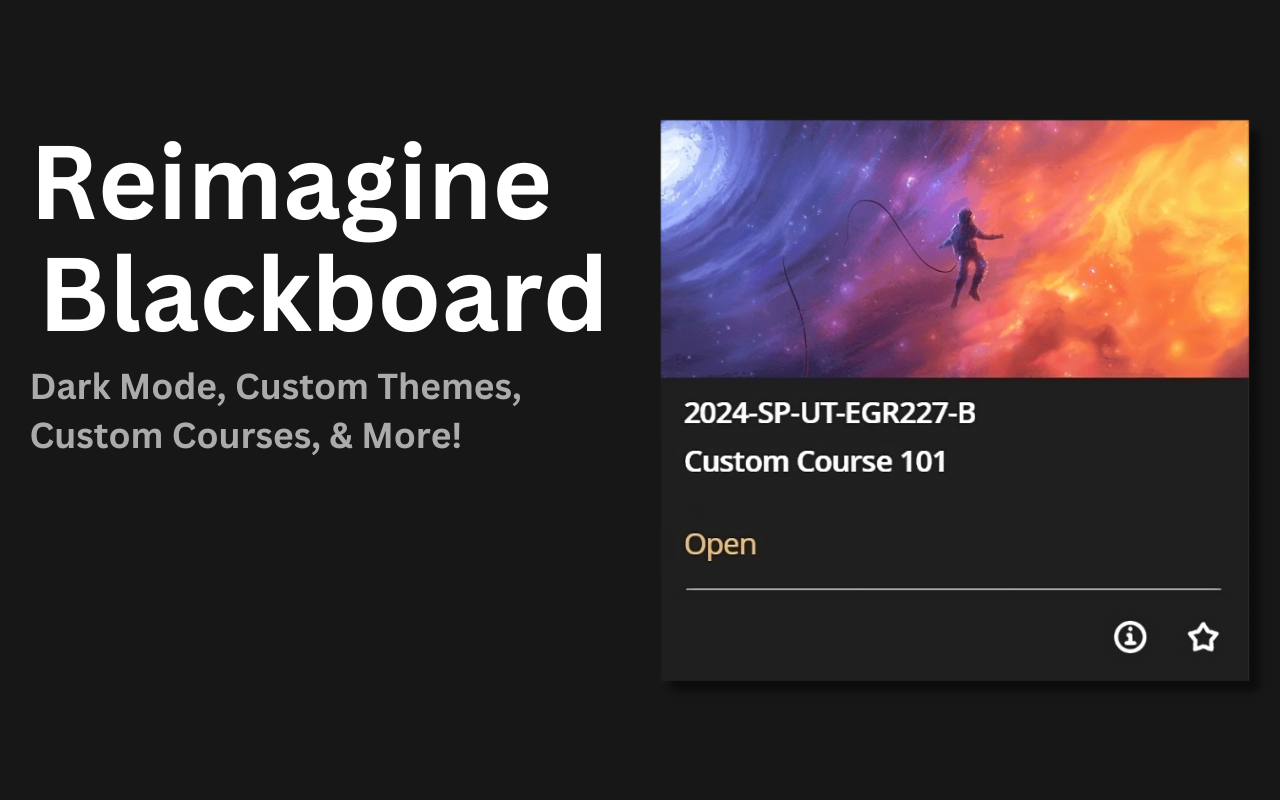
A lightweight visual overhaul for Blackboard Learn. Toggle a dark mode, replace the generic course images and codes with your own banners and nicknames, pick from a small library of preset themes, or build your own by adjusting the primary, secondary, and sidebar colors independently. All options live inside the extension popup and apply in real time. Source is published on GitHub, the listing states no data is collected, and the install size is under 40 KB — one of the smallest in this comparison.

Key Features

  • • Dark mode toggle tuned for Blackboard Learn
  • • Custom course images and custom course names
  • • Preset theme library with one-click switching
  • • Full 3-color theme builder (primary / secondary / sidebar)
  • • Custom font support; open-source on GitHub
Better Blackboard Learn theme preview

Direct PDF Viewer for Blackboard Ultra

INLINE PDF PREVIEW ★★★★ 3.7 · 60 users · Free
View on Chrome Web Store →

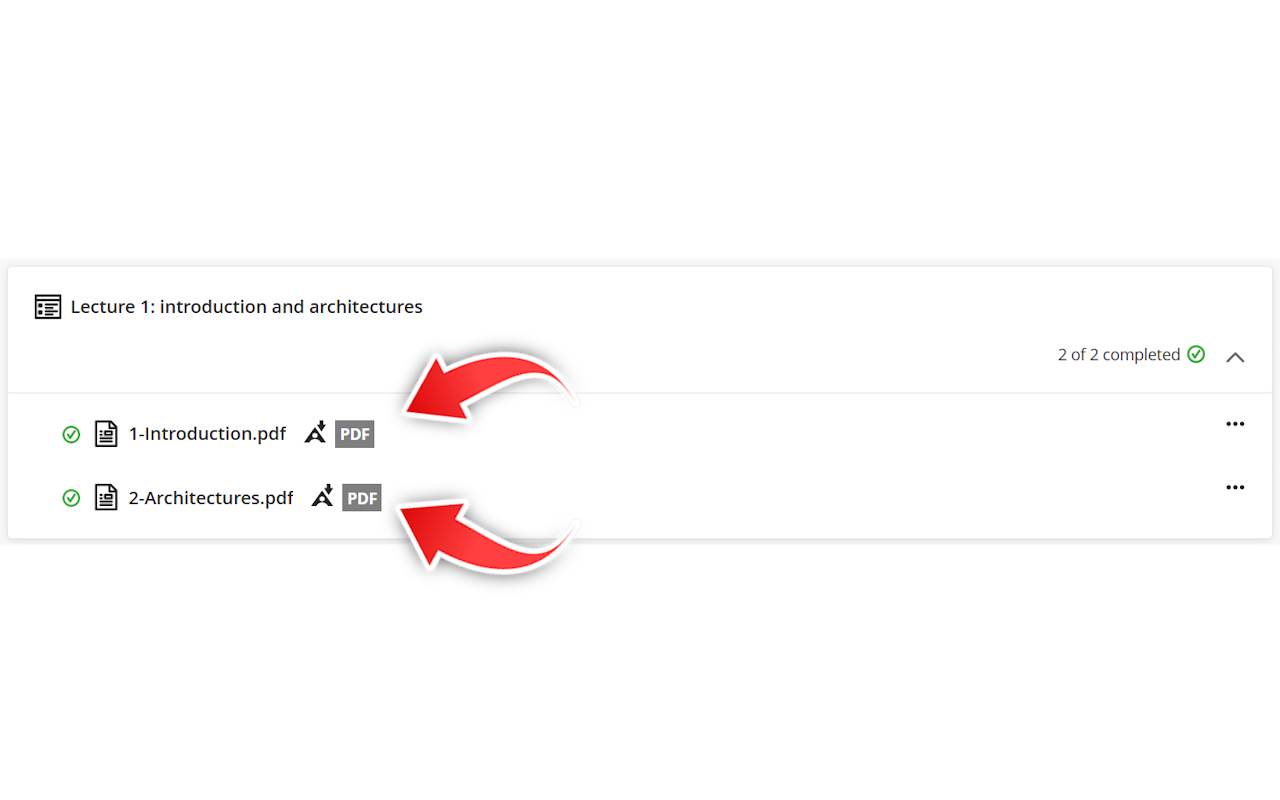
A narrow-purpose utility that fixes a specific Blackboard Ultra annoyance: by default, clicking a PDF attachment in the Ultra course view often forces a download or opens a modal that re-wraps the file. This extension rewrites those links so PDFs open directly in Chrome's built-in PDF viewer — letting you scroll, search, and switch documents without leaving the tab. The user base is small and it only targets Ultra course pages, but for students in heavy reading-load classes the time savings add up quickly.

Key Features

  • • Opens course PDFs inline in Chrome's native viewer
  • • Bypasses Blackboard Ultra's download-first behavior
  • • Preserves native PDF search, zoom, and page navigation
  • • Tiny footprint (~11 KB); no data collection declared
  • • ⚠️ Targets Blackboard Ultra only, not Classic
Direct PDF Viewer inline preview
F

Firefox Add-ons

1 listing

Blackboard+ (Firefox)

THEMES & BANNERS No ratings yet · 6 users · Free · MIT
View on Firefox Add-ons →

A newly released (January 2026), MIT-licensed Firefox add-on that brings Better Blackboard Learn-style customization to Firefox users. Features include a dark mode, a preset theme library, a custom color/theme builder, font family and size overrides, and per-course banner images and nicknames. The listing declares no data collection and the source is on GitHub. User count is intentionally disclosed as very small (6) because the add-on is still in its initial release window — treat it as an early-stage option if you care about Blackboard customization on Firefox.

Key Features

  • • Dark mode tuned for Blackboard Learn
  • • Preset theme library plus full custom theme creator
  • • Custom font family and adjustable font size
  • • Per-course banner images and custom course nicknames
  • • Open source — MIT licensed, source on GitHub
  • • ⚠️ Newly released (Jan 2026); small user base
ℹ️
Why only one Firefox add-on? The Firefox Add-ons store has very few Blackboard-specific listings that pass our filters. Most candidates are either paid with third-party telemetry, domain-locked to a single university, or have not been updated in years. Blackboard+ is the only actively maintained, free, open-source Firefox add-on that targets Blackboard Learn generically, which is why it is listed here despite its early-stage user count.

Before You Install

🔍

Check the store page

Review permissions, screenshots, update date, and recent reviews before installing any extension or add-on.

🏫

Check your school's policy

Some universities restrict third-party tools that modify the Blackboard interface or read course data. Check your institution's acceptable-use policy before installing.

⚠️

Not official Blackboard tools

These are independent browser-store listings, not maintained by Anthology (Blackboard) or your school. Anthology and your institution are not responsible for their behavior.

Guides & Tips for Blackboard Students

Workflow improvements that don't require any extension at all.

🔀 Blackboard Ultra vs Classic: Which One Are You Actually Using?

Anthology ships two very different front-ends under the "Blackboard Learn" name, and which one your school runs directly affects which extensions will work. A quick visual test:

  • Ultra — modern single-page layout, left-hand base navigation with icons for Courses / Calendar / Messages / Grades, content opens in side panels rather than full-page reloads, course pages use a streamlined "Content" tab.
  • Classic (Original Experience) — tab bar at the top, each course is a left-sidebar menu of custom content areas created by the instructor, more full-page navigation.

Extension compatibility by version: Better Blackboard Learn and Blackboard+ both target the general Blackboard Learn UI and work on Ultra and Classic surfaces (with small layout differences). Direct PDF Viewer is Ultra-only — it specifically rewrites the PDF handler that Ultra uses and will not do anything on a Classic course page. If your school is mid-migration (many are, through 2026), you may see Ultra on some courses and Classic on others — install accordingly.

📄 Working With PDFs in Blackboard Ultra Without Downloading Everything

Ultra's default PDF behavior is the single most common student complaint: click a reading, wait for a download, open locally, switch back to the tab, lose your place. Three strategies reduce friction:

  1. Install Direct PDF Viewer for Blackboard Ultra (listed above). It rewrites the Ultra attachment link so PDFs open inside Chrome's built-in viewer in a new tab — you keep native search, zoom, and Ctrl+F across the file.
  2. Use Chrome's built-in PDF settings as a fallback. Go to chrome://settings/content/pdfDocuments and make sure "Download PDFs" is OFF. This doesn't fix the Ultra-specific link wrapper, but it stops other PDF-heavy sites from auto-downloading.
  3. Download once, annotate locally. For reading-intensive courses, a local PDF reader with highlighting (Preview on macOS, Edge on Windows, any FOSS reader) is still the most reliable long-form workflow. Keep a class folder synced to cloud storage so annotations persist.

🔔 Tuning Blackboard Notifications (Email, Mobile, and RSS)

Blackboard's default notification set is either too noisy (every discussion reply via email) or too quiet (grades released without an alert). Three places to adjust:

  • Profile → Notification Settings (Ultra base navigation) or Global Navigation → Settings → Notifications (Classic). Toggle stream, email, and push independently for each event type — you usually want push ON for grades and announcements, email OFF for discussion replies.
  • Blackboard Mobile app (iOS/Android) — enable push notifications only for courses you're actively taking. The app also consolidates due dates from every course into a single timeline, which saves clicking through the web UI.
  • Per-course email digest. For heavy discussion-based courses, switch from "individual messages" to a daily digest inside the course's discussion settings. This alone often cuts inbox volume by 70–80%.
  • Calendar subscription (iCal). Ultra exposes a calendar feed URL per user — subscribe to it from Google Calendar or Apple Calendar and all Blackboard due dates appear alongside your personal calendar without opening Blackboard at all.

📊 Blackboard vs Canvas, Moodle, and Brightspace: A Student's Quick Comparison

If you use more than one LMS across schools, internships, or professional certifications, a few practical differences are worth knowing:

Aspect Blackboard Canvas Moodle Brightspace
Two UI versions?Yes (Ultra / Classic)NoTheme-dependentNo
Native dark modeNoNoTheme-dependentNo
Mobile app qualitySolid (Bb Mobile)Best-in-classMoodle App OKPulse app
Extension ecosystemSmallLargestMediumSmall
Built-in calendar export✅ iCal✅ iCal✅ iCal✅ iCal

Takeaway: Blackboard's Ultra/Classic split is its most distinctive quirk for students. Expect UI inconsistency across courses, and favor extensions (like the three listed above) that are written to handle both surfaces or that clearly state which one they target.

Frequently Asked Questions

Using a Different LMS?

We also review browser extensions for other learning management systems.